Steam Game Recording can capture a great moment without leaving you with a finished video file. The useful distinction is between temporary background footage, a clip saved in Steam, and an exported MP4. If you want to keep something, review the recording before it is overwritten, save the relevant clip, and export a separate copy when you need a file for another app.
Background footage, saved clips and MP4 files are different
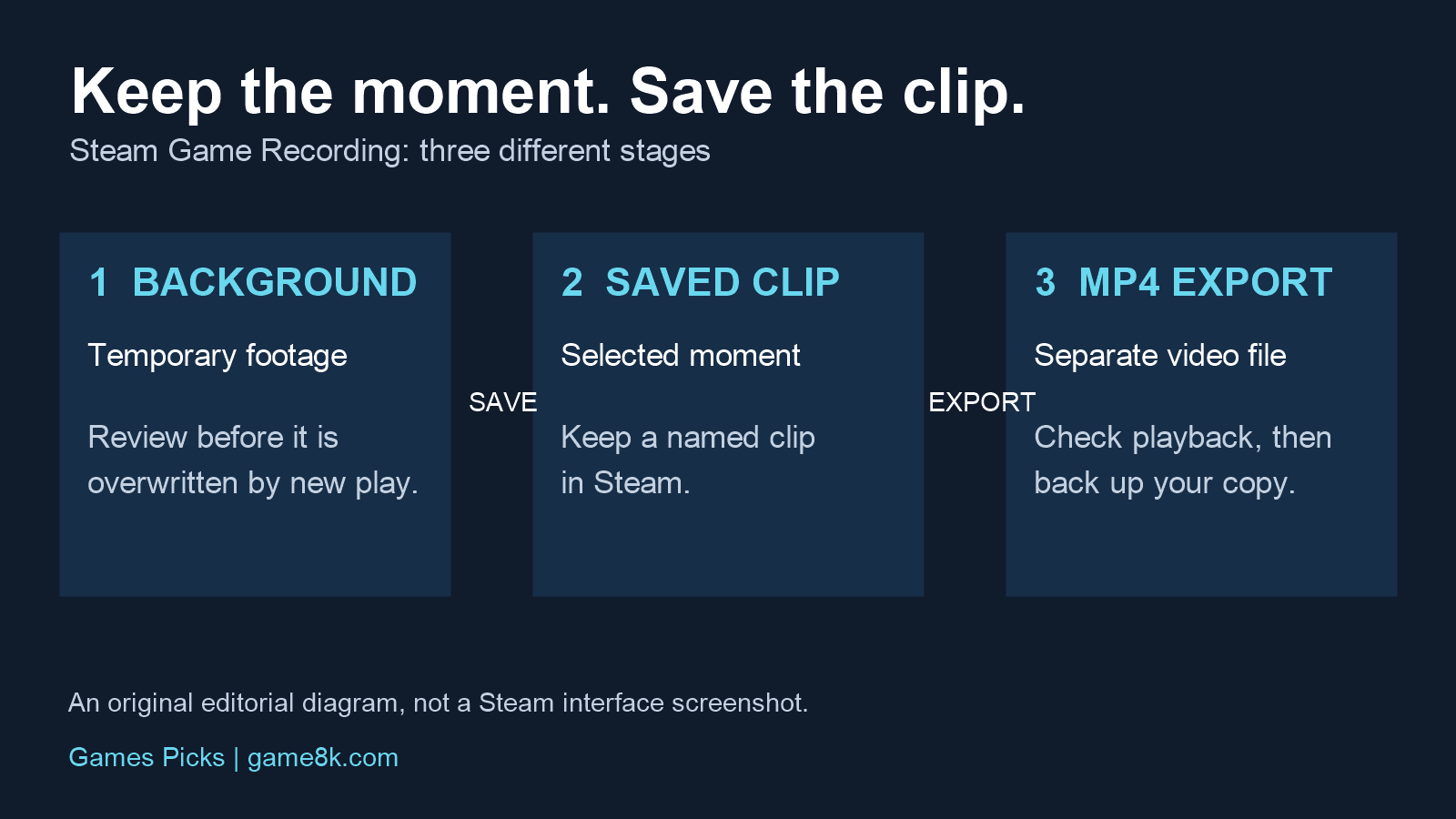
Valve explains that background recording uses a rolling store: when the configured allocation fills, new footage replaces older footage. A long play session therefore does not mean every earlier moment will still be there at the end. Saving a selected clip keeps that moment in Steam. Exporting creates an MP4 that you can find and use independently of Steam’s recording timeline.
- Background footage: a temporary source from which to select moments. Review it while the moment is still available.
- Saved clip: the selected section you have deliberately kept in Steam. Give it a useful name.
- Exported MP4: a separate video file. Check its destination and playback before treating it as your shareable copy.
A timeline marker helps you find an event; it is not a substitute for saving the footage. Think of a marker as a bookmark, not an archive.
Choose a recording mode around how you play
Open Steam > Settings > Game Recording to review the available recording options. Background recording suits unpredictable moments: a close co-op rescue, an unusual encounter or a mistake you want to study. Its trade-off is that you need to review and save those moments before the rolling footage moves past them.
On-demand recording suits a planned attempt, such as documenting a particular boss strategy. You choose when to start and stop, so there is less unrelated footage to review. The trade-off is simple: an unexpected moment before you start will not be captured by that recording.
Steam Game Recording works with games that support the Steam Overlay; Valve notes that some older games are not compatible. Confirm that your intended game records correctly with a short sample before relying on it for a one-off session. This is a practical check, not a claim that we have tested every game or device.
A repeatable way to save a useful clip
- Find the footage promptly. On desktop, open View > Recordings & Screenshots. On Steam Deck, open Media from the Steam menu.
- Keep enough context. Use the timeline to locate the event and choose the clip controls. Set the start before the decision or action you want to show, and end after its outcome. A clip that only shows the final hit may be less useful for learning than one that includes the setup.
- Save the selection in Steam. Use the save/share options and check that the clip appears in your library. Valve identifies a saved clip on the timeline with a yellow bar.
- Export when you need a file. Choose Export Video File for an MP4. Steam’s raw recording data and timeline are not simply a finished MP4 waiting to be renamed.
- Check the exported copy. Locate the destination file and play its beginning, the important moment and its ending. Check sound as well as picture before uploading or backing it up.
For example, after an unexpected co-op rescue, mark the event if convenient, then review it before starting another long session. Trim a clip that shows why the rescue mattered, save it with a name such as the game, encounter and date, and export it if you want to share outside Steam. That avoids leaving your only useful copy inside a temporary recording window.
Plan storage around when you review recordings
There is no single storage allowance that is right for every player. Recording quality, the amount you retain and other files on the chosen drive all matter. Start with your workflow: if you usually review after a short session, you need a different buffer from someone who expects to find a moment after a long evening.
Check the selected recording folder, the configured recording duration or allocation and the drive’s actual free space. These answer different questions. A recording setting describes what Steam is configured to retain; free space describes what the drive can currently accommodate. Saved clips and exported copies also need room, so leave capacity for the final files rather than filling the drive with temporary footage.
If you are also planning game storage on a handheld, our Steam Deck microSD card buying guide explains the separate capacity and compatibility considerations. Do not assume that buying a larger card automatically changes the folder Steam uses for recordings.
Work out what is missing before changing settings
- An older moment is missing: check whether it was actually saved as a clip or only left in background footage. Older temporary footage may already have been overwritten; increasing the buffer now does not restore it.
- Recording or clip creation stops: check Steam’s warnings and the recording drive’s free space. Valve lists insufficient storage as a possible cause. Review existing files, the recording location and retention settings before another session.
- You have a recording but cannot find an MP4: return to the recording, select the clip and use the export option. Then check the export destination rather than guessing from the raw recording folder.
- A clip has the wrong sound: review the audio source options and make another short sample. Do not assume voice chat was excluded merely because the video shows only the game.
Before removing any recording folders to reclaim space, identify what they contain and verify any copies you intend to keep. Deleting an unverified source is a poor substitute for an export check.
Review a clip before sharing it
Watch for player names, private chat and voices of other people. Check which audio sources are included and choose a sharing destination appropriate for the audience. Steam also offers sharing and device-transfer options, but an exported MP4 is useful when your next step specifically requires a local video file.
The habit to keep is short: capture, review, save, then export and check when needed. It is more dependable than assuming every recorded minute is permanently archived.
Sources
Feature details checked on 18 November 2026 against Valve’s Steam Game Recording FAQ and Steam Game Recording overview. This is an editorial workflow guide based on official documentation, not a performance benchmark or hands-on product test.
Corrections and questions
Have a source that updates a detail in this article? Email ldadasmilemore@gmail.com with this page address.