A useful Steam Deck storage upgrade starts with the games you want to keep installed, not the largest speed number on a card listing. Check compatibility first, estimate the space your own library needs, then compare sellers and return conditions. This is a buying checklist, not a hands-on speed test or ranking of card brands.
Separate the interface from the speed class
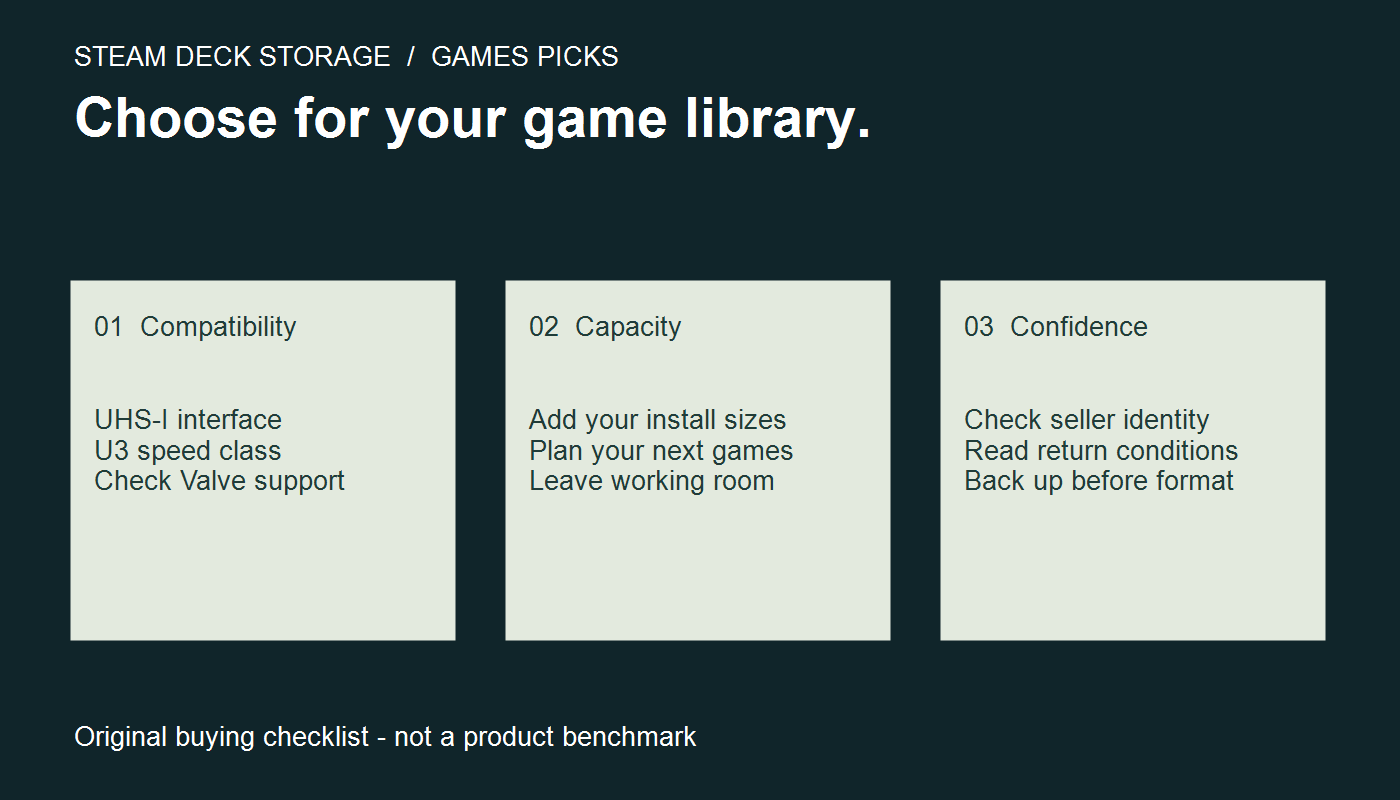
Valve lists a UHS-I microSD slot for both the LCD and OLED Steam Deck. Its support guide recommends UHS-I cards with UHS Speed Class 3 or better. It says UHS-II and UHS-III cards are expected to work, but their higher transfer speeds are not supported by the Deck. Paying extra for that interface alone therefore does not buy the Deck its advertised maximum speed.
The labels describe different things. UHS-I is the interface; U3 is a speed-class marking. The SD Association explains that speed classes specify minimum sequential performance under defined conditions, mainly useful for sustained recording workloads. A class badge is not a measurement of how quickly a particular game loads. If a listing mixes interface names, speed classes and headline transfer rates, check the manufacturer’s specification for the exact card.
Estimate capacity from your actual games
List the games you will actively play in the next few weeks. Write down their current installed sizes from your library or storage screen. Count optional downloads you use, and set aside additional room for updates and your next purchase. The objective is a practical library, not fitting every game you own on one card.
| What you plan to keep | Example allowance |
|---|---|
| Two larger games at 85 GB each | 170 GB |
| Five smaller games at 12 GB each | 60 GB |
| Your chosen spare allowance | 70 GB |
| Total planning target | 300 GB |
In this example, compare capacities above the 300 GB target, then check available formatted space before assuming everything will fit. The 70 GB allowance is a planning choice, not a Steam Deck requirement. If you finish one game and remove it, a smaller library target may make sense. If you revisit several large games regularly, make room for that habit.
Compare the purchase, not just the card
- Identify the exact model. Save the model number and capacity so similarly named listings do not blur together.
- Check who sells and fulfils it. Review the seller identity, stated warranty provider and return process available where you live.
- Read the delivery total. Compare the final local price including delivery and stated taxes. This guide does not quote live prices or promise availability in every country.
- Keep the receipt and packaging. You can then identify what arrived and raise a return if it differs from the listing.
Before choosing a more expensive capacity, ask which real inconvenience it removes. Avoid paying for space you will not use, but also avoid buying so little that your usual games immediately require another storage decision.
Before formatting or moving anything
Valve says a microSD card must be formatted before use on Steam Deck, and points to Steam > Settings > System > Format SD card. Formatting removes existing files: first copy anything you need elsewhere and confirm you selected the intended card. Storage management is under Steam > Settings > Storage. Follow the current on-device prompts if menu wording differs.
After setup, check the available space and try one game you already know before planning the rest of your library. Keep a simple note of where your regular games are installed. If an issue appears, record the message and consult Steam Support rather than repeatedly formatting a card containing files you have not backed up.
A quick decision before checkout
Choose a card when you can answer four questions: does its specification match Valve’s guidance; is the capacity based on your own install sizes; are the seller and return terms clear; and is the final price acceptable for the inconvenience it solves? There is no universal best capacity, and we do not claim a particular loading-time improvement.
Related reading: visit our gaming hardware archive for more equipment coverage. Read older news posts in the context of their original publication dates.
Sources and editorial notes
Documentation checked on 17 November 2026. Compatibility facts come from Valve; speed-class definitions come from the SD Association. The capacity worksheet and purchasing checklist are our editorial framework. This guide contains no affiliate links or paid placement.
- Valve: Steam Deck basic use and troubleshooting
- Valve: Steam Deck LCD specifications
- Valve: Steam Deck OLED specifications
- SD Association: Speed Class
Corrections and questions
Have a source that updates a detail in this article? Email ldadasmilemore@gmail.com with this page address.